

See the Whole Schedule at a Glance
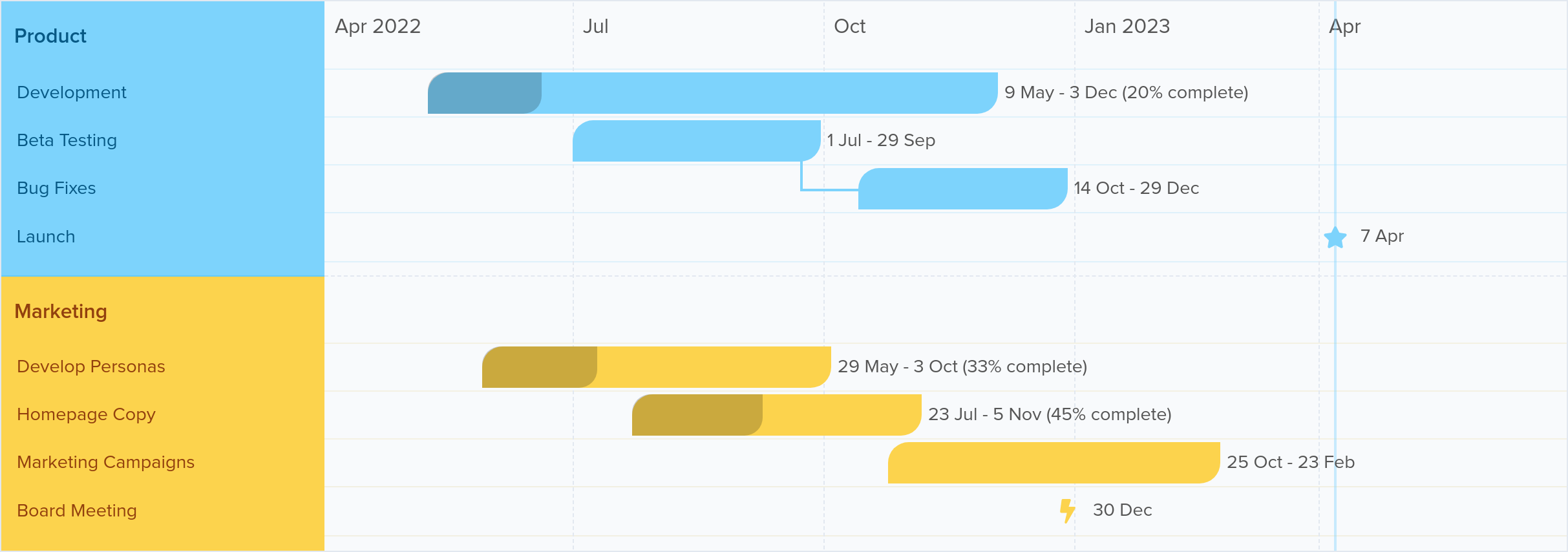
Choose the Gantt Chart template when you create a timeline. Each task gets its own row, with its name on the left and its bar on the right, and tasks are ordered by start date automatically.
Keep the Plan Up to Date
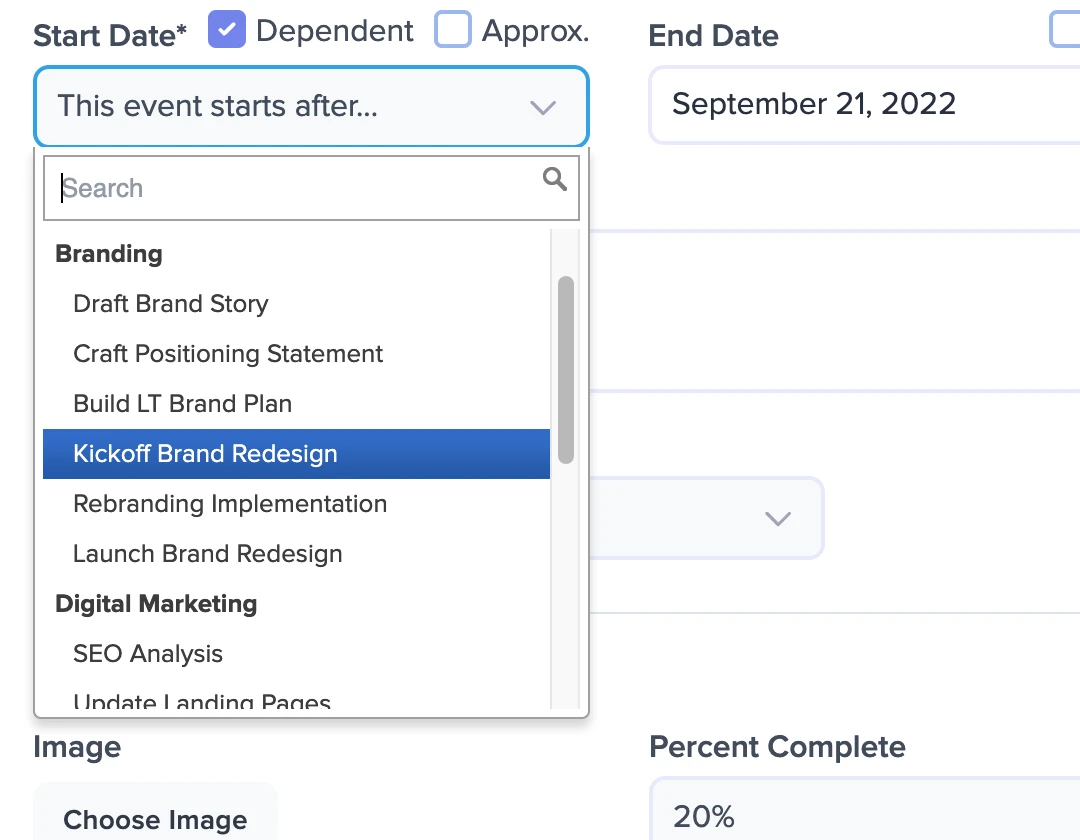
Make one task start when another ends, and its dates move whenever the earlier task changes. Set a percent complete to shade each bar, and mark key dates as milestones that run the full height of the chart.
Share It With Anyone
Send a link or an HTML embed, export the chart as a PDF, an image, a PowerPoint file or a spreadsheet, or present it in Presentation Mode.

Everything You Need in a Gantt Chart
Here's what you can do with Preceden.
Dependencies
Make an event start when another one ends, so fewer dates need updating when plans change.
Percent Complete
Show how far along each task is by setting its percent complete.
Durations
Enter a duration like "3 weeks" as the end date and Preceden calculates the actual date for you.
Bulk Editor
Add and edit many tasks at once in a spreadsheet-like grid, instead of one at a time.
Spreadsheet Import
Import tasks from an XLSX or CSV file to turn a spreadsheet you already have into a Gantt chart.
Layers
Group tasks into layers, one per team, phase or workstream, all on the same date axis.
Drag and Drop
Update dates and reposition events in seconds as your project progresses.
Zoom
View all events at once or zoom in to focus on a specific time period.
Time Support
Add exact start and end times to events when a date alone is not precise enough.
Themes
Apply one of our built-in themes to change how a timeline looks.
Notes
Attach notes to an event, a layer, or the timeline as a whole to record extra detail.
Privacy Controls
Control who can see your timeline by making it private, password-protected, or accessible via a secret URL.
What Others Are Saying About Preceden
Unless you're a Certified Associate in Project Management, using project management software like Microsoft Project or Merlin Project is complicated at best. If you want to get similar results with software you can start using with virtually no learning curve, this is it. I bought Preceden today and quickly produced an impressive, very detailed marketing action plan for a client that even included our logo. The Gantt charts it produces on the fly look not only professional (even beautiful?) but they are also functional with the ability to create dependencies as well as incorporate detailed notes that show up on hover as well as being listed below the chart. But the clincher for me is that Preceden not only lets me send a link to the timeline, it also lets me download it as a PDF that I can share with my clients.
Preceden is exactly what I have been looking for to create beautiful and informative timelines for my projects and business. It's a much more user-friendly version of Gantt charts without having to use more advanced project management tools to quickly create and share timelines.
FAQs about Making a Gantt Chart in Preceden
How do I make a Gantt chart in Preceden?
Sign up, create a new timeline and choose the Gantt Chart template, then add your tasks with their start and end dates. To turn an existing timeline into a Gantt chart, check Use Gantt chart layout under Appearance and Layers. Our guide to creating Gantt charts covers each step.
Can Preceden generate a Gantt chart for me?
Yes. Type a project with the word Gantt in it, such as "Gantt chart for a website launch", into the generator on our homepage. Preceden drafts the tasks and shows them in the Gantt chart layout, and you can edit the result from there.
Is it free to make a Gantt chart?
Yes, you can sign up and create unlimited timelines with up to 10 events each for free. We have paid plans that let you add unlimited events and also provide more advanced functionality.
Should I use a Gantt chart or a timeline?
A Gantt chart suits a plan for work, with one row per task, while a timeline suits a record of what happened. Preceden draws both from the same events, so you can switch between them. See Gantt chart vs timeline for how to choose.
Can Preceden replace my project management software?
Not if you need to run the project in it. You can't assign a task to a person, balance workloads or calculate a critical path in Preceden. It's built for communicating a schedule clearly, and many teams use it alongside the tool that tracks the work.
What if I have more questions?
Browse our support docs for answers, or drop us a note anytime and we'll get back to you shortly: [email protected]
Preceden for Other Kinds of Timelines
Preceden is built for more than one kind of timeline. Here's what else people use it for.
- Project Management Plan and communicate project schedules.
- Education Bring class projects and lesson plans to life.
- Legal Cases Build case chronologies attorneys can share.
- Research Map out historical and academic research.
- Fiction Writing Track characters, plots, and fictional histories.
- Genealogy Line up your ancestors' lives on one date axis.
- Personal Timelines Map the homes, jobs and milestones of your own life.
- Homeschool Keep a history timeline that grows with your lessons.
- Timeline Templates Start from a ready-made layout instead of a blank page.