
Duplicate a Layer
Here's how to duplicate a layer:
- Click the layer's name, either on the timeline or in the list of layers and events below it.
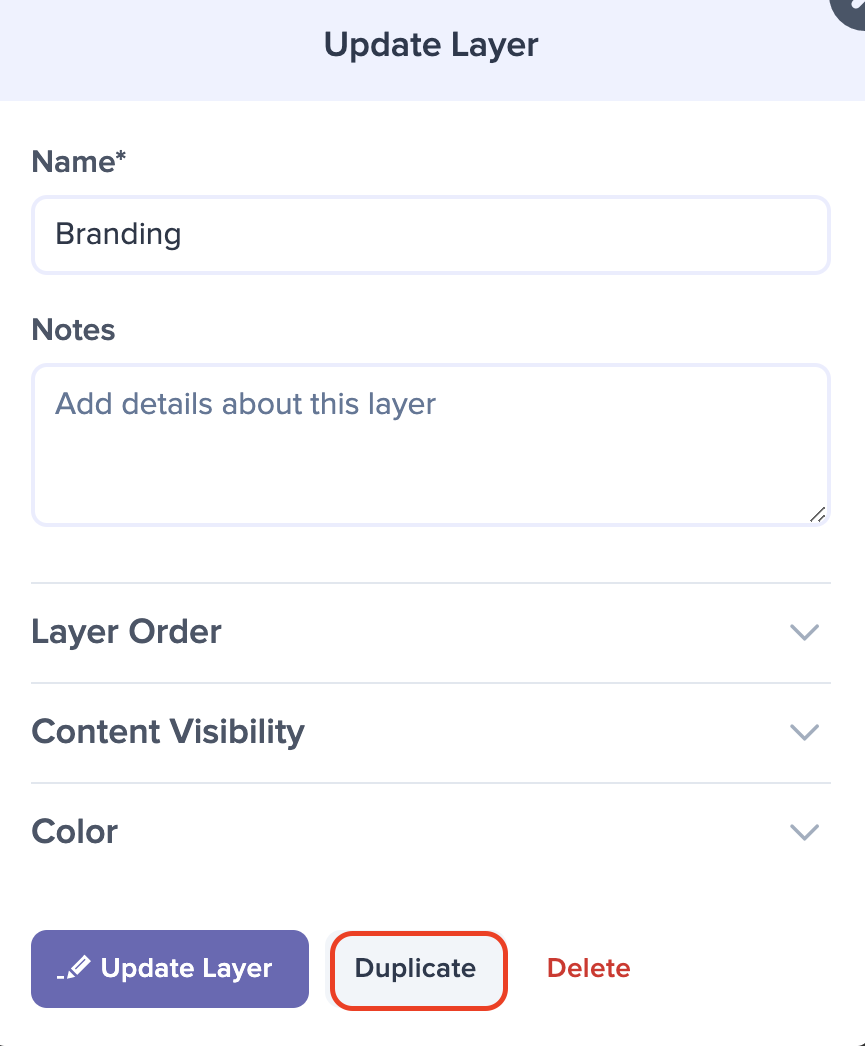
Click the Duplicate button at the bottom of the Update Layer dialog.
When Preceden asks "Do you want to duplicate this layer?", click Duplicate to confirm. If the layer already has events, this may take a few moments.
The copy appears directly below the original layer, with the same name, notes, color and visibility. Rename the copy by clicking its name so you can tell the two apart.
Duplicating a layer also duplicates its events. To start with an empty layer instead, add a layer.
Connected and Dependent Events
The copied events keep their connections. When a copied event was connected to another event in the same layer, the copy connects to that event's copy. When it was connected to an event in a different layer, the copy connects to the original event there.
Dependent events follow the same rule. If an event depends on another event in the layer, its copy depends on the copy. If it depends on an event in a different layer, its copy depends on that same event, so both versions move when it does.